Mentor features: Settings
Mentor Help centerUpdated
Settings is where you can edit your sessions and account information, as well as where you can do any of our available integrations.
The main items are:
- Sessions
- Account
- Integration
Sessions: This item includes the following sub-items:
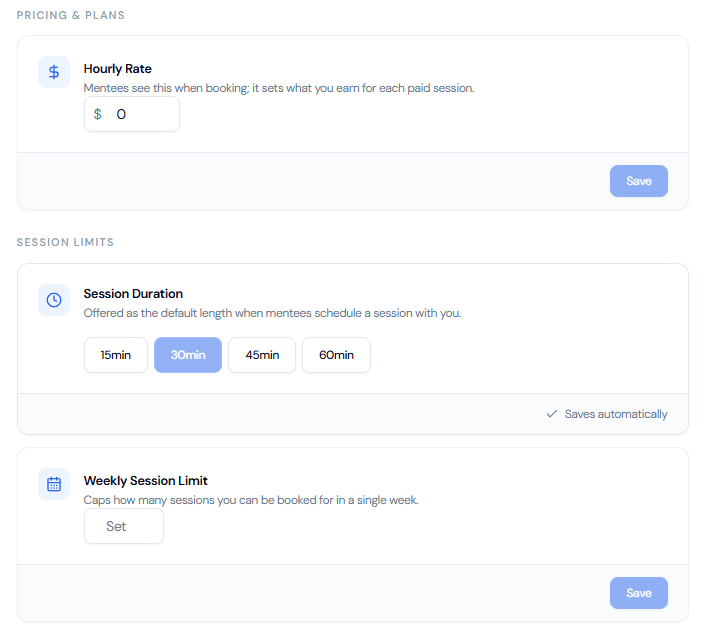
- Hourly rate. Here you will be able to establish the price you want to charge for each meeting’s hour. Take into consideration that you can start charging per session only when you have received 4 reviews, before that, you will be mentoring for free. To better understand this you can read about our GBC philosophy.
- Maximum sessions per week. Here you will establish the limit of sessions you wish to attend during a week, this way we can prevent you from being overbooked and we make sure your time will be respected.
- Session Duration. Here you will be able to set a time-limit per session, the options are: 15, 30, 45, and 60 minutes.
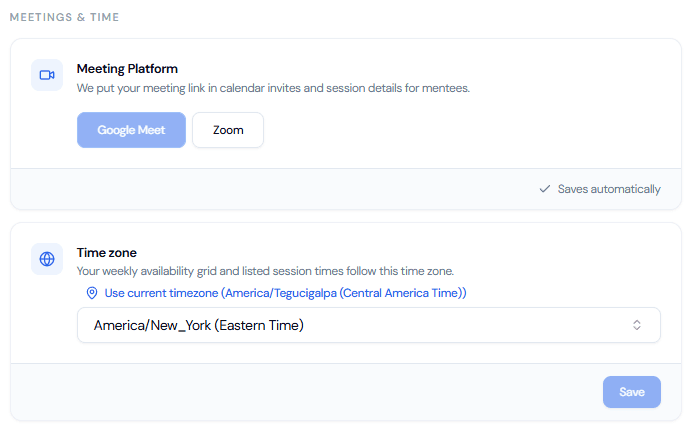
- Meeting Preference. Whether you want to meet using Zoom or Google Meets, you can select it here and leave your preferred link.
- Time zone. Here you will set the time zone of your current location, this way mentees will be able to know your time and know if you can help them based on it.
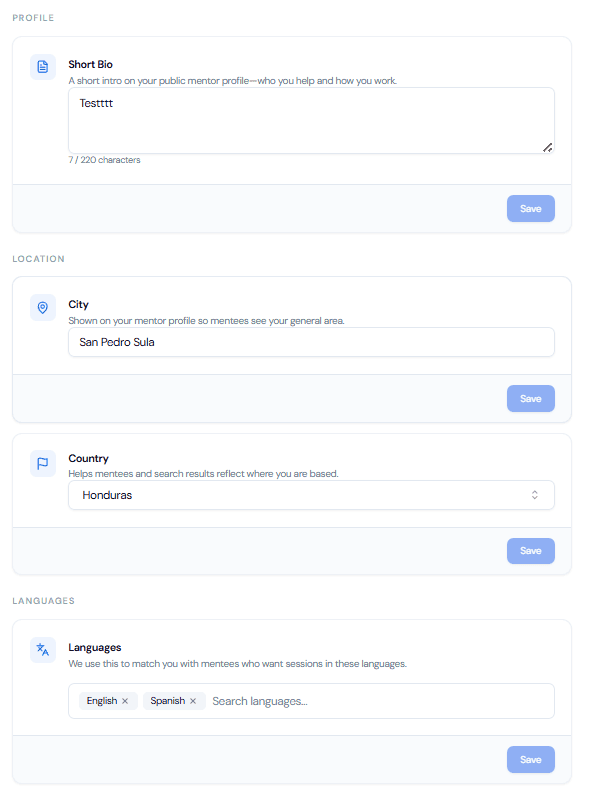
Account: This item includes the following sub-items:
- Short bio. Here you will be able to write down a short description about yourself which will help mentees better understand, in a few words, more about your background, hobbies, professional journey, etc. You are free to write whatever you want, just mind that there’s a 100 characters limit for it.
- City. Here you will write down the city you live in.
- Country. Here you will write down the country you live in.
- Languages. Here you will be able to write down the languages you speak, helping your mentees to know if you will be able to communicate with them.
Integrations: This item includes the following sub-items:
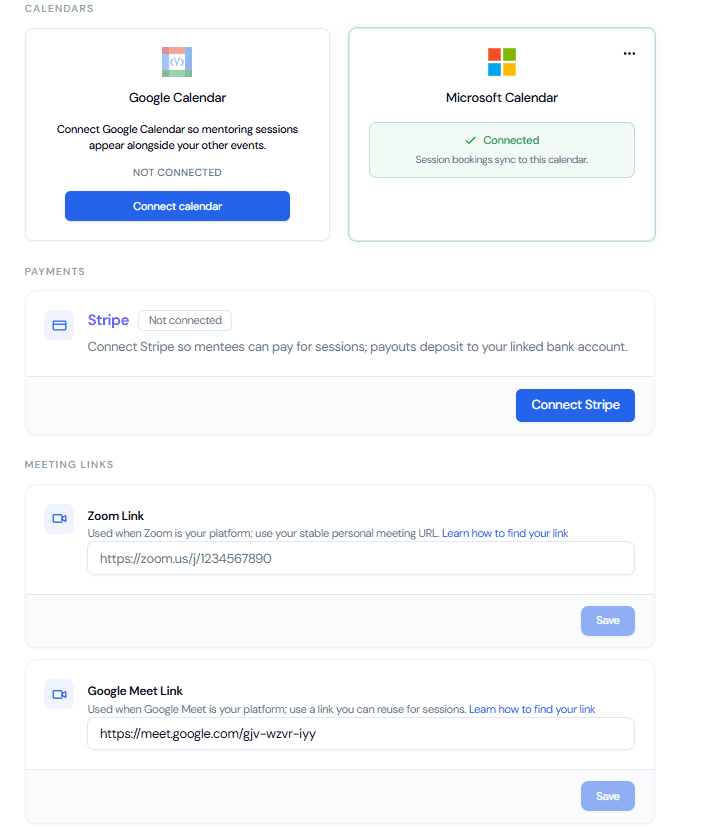
- Sync your Calendar. Here you will be able to connect with your Google or Microsoft Calendar, this will help you manage your mentor’s schedule in a better way by constantly receiving notifications for upcoming meetings, and will prevent you from having overlapping meetings.
- Connect your Stripe Account. Stripe is our payment method, so connecting your account is critical for you to receive your payments from your mentees directly.
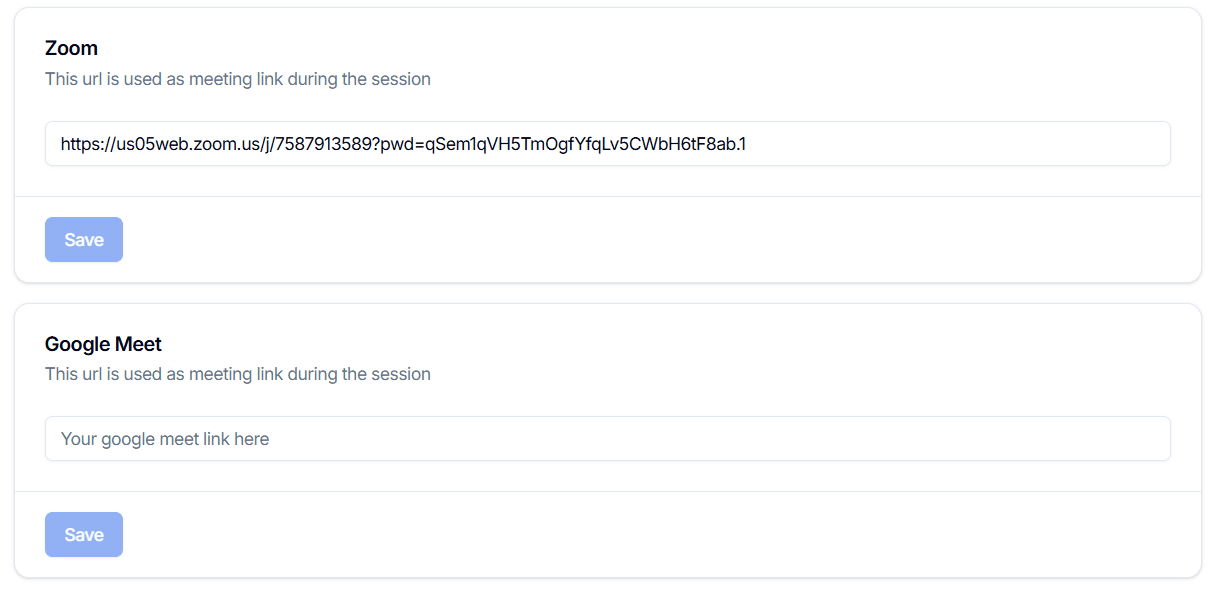
- Zoom. Write down your meeting’s URL, which will connect to your calendar.
- Google Meet. Write down your meeting’s URL, which will connect to your calendar.