Zoom and Google Meet ID
OnboardingUpdated
You can use Zoom or Google Meet to connect to your session calls. You can easily add your ID for these two tools in your settings and it will automatically be added to the calendar invite depending on the mentor’s available options and what the mentee selects during the session request.
Adding your Zoom ID
- First you need to get your personal meeting ID by signing in to the Zoom web portal > clicking “Profile” > copy the “personal link”. If you’re having trouble, you can read more about it here.
- Then, in Mentors CX, go to Settings > Integrations > Go all the way down to Zoom Link.
Adding your Google Meet
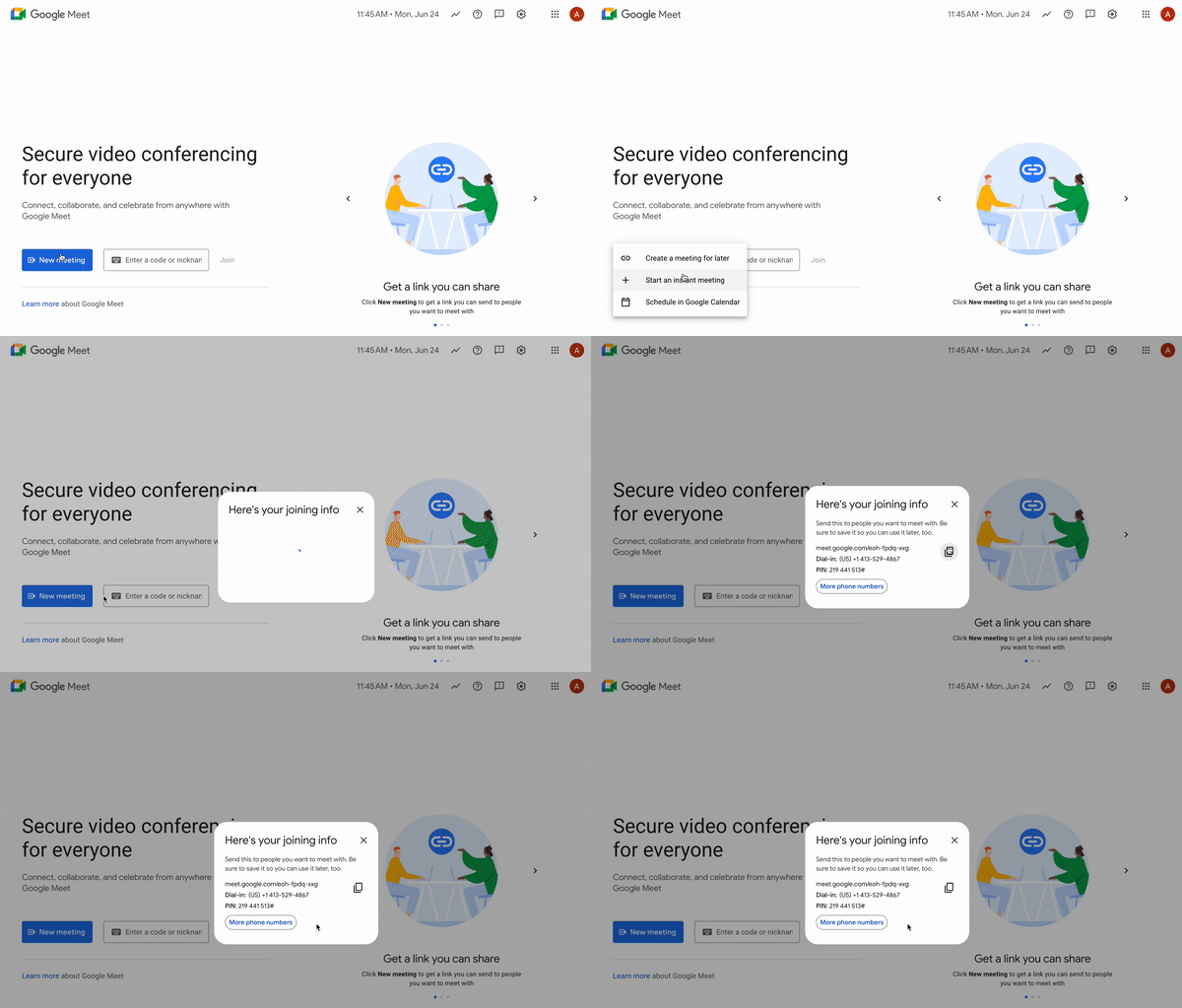
- First you need to get a reusable meeting link by going to Google Meet > clicking on “New meeting” > create a meeting for later > copy the link provided.
- Then, in Mentors CX, go to Settings > Integrations > Go all the way down to Google Meet Link.
Visual example: